Overview panel for budgeting
The Overview Panel is the central interface for managing budgets in Caleido. It shows all budget items behind any number in your report and allows you to view, edit, and create items with full control over their logic, timing, and accounting details.
Key concept
A single number in Caleido's budget cell often consists of multiple budget items.
The Overview Panel allows you to:
-
See all underlying items behind a number
-
Navigate between items
-
Edit individually or in bulk
-
Control accounting logic with precision using double-entry budgeting
Summary of functionalities
- Below is a short
How to open the Overview Panel
-
Ensure that budget columns active in your report
-
Click any number in the budget
The Overview Panel will open, showing all budget items behind that number.
Panel structure
The Overview panel has two main sections:
-
List of budget items
-
Budget item fields
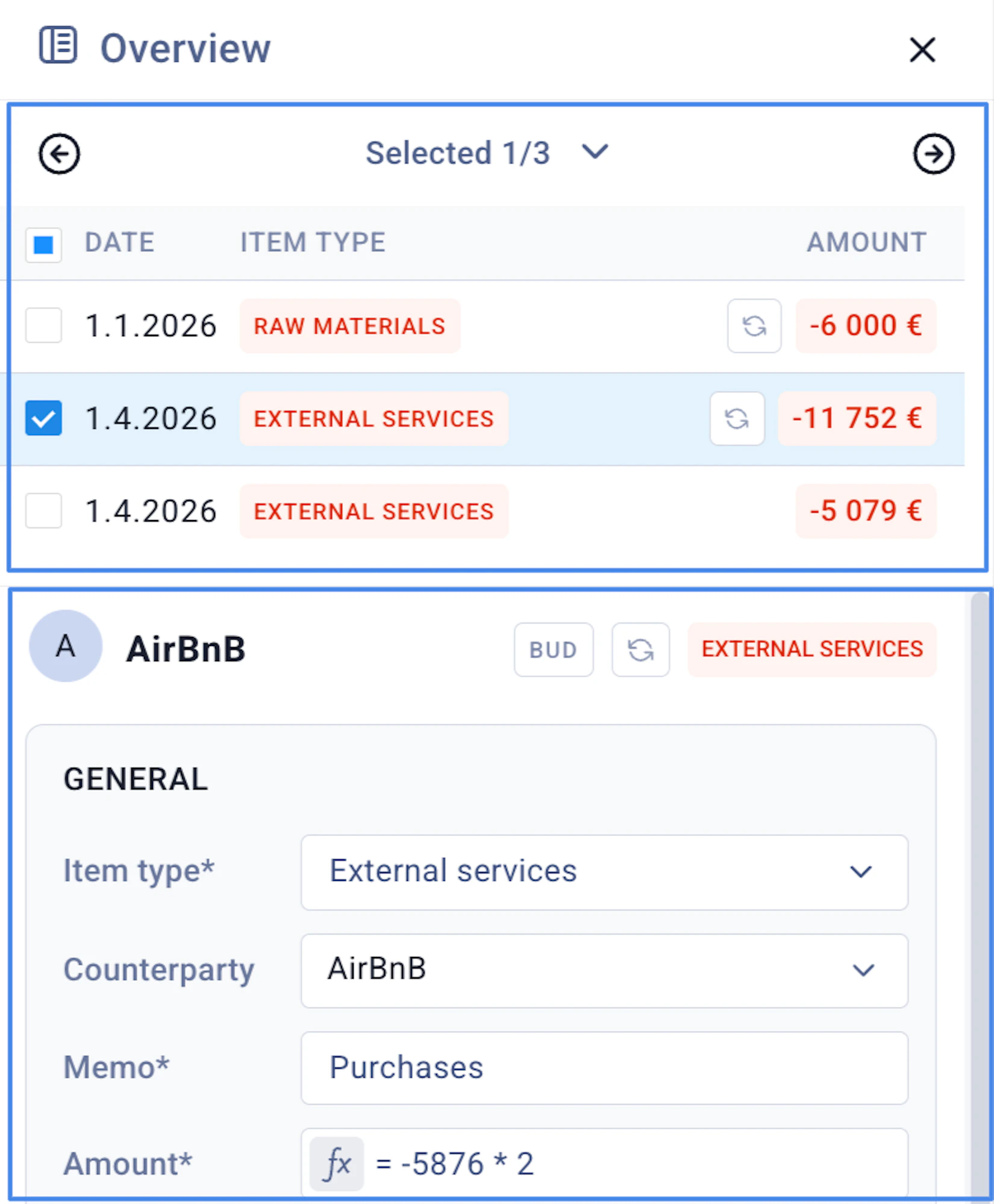
Upper section: List of budget items
This upper section shows all the budget items of a selected cell.
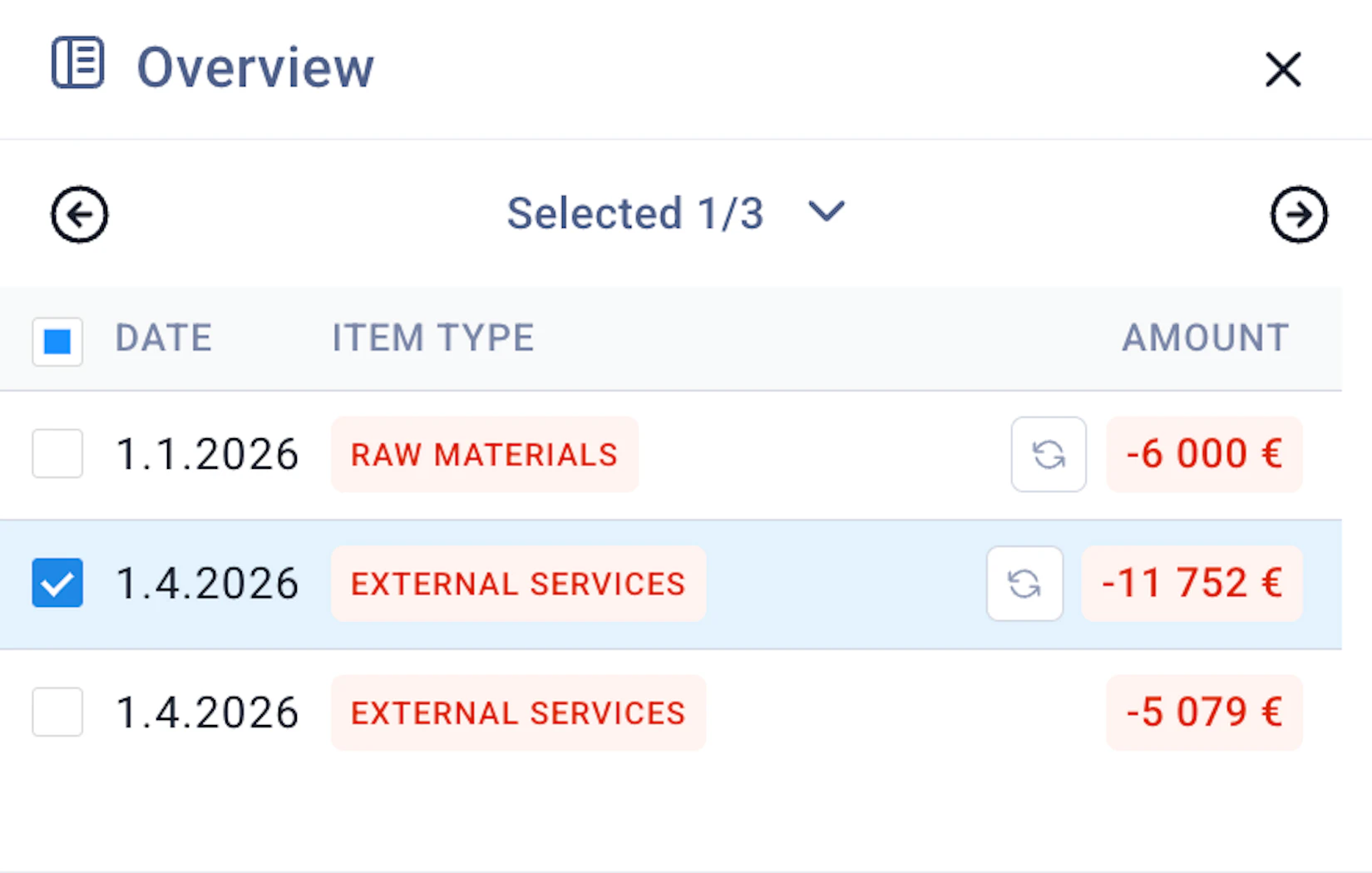
Key behaviors:
-
Displays the number of budget items
-
Lists all underlying budget rows of the selected budget cell
-
Use the left/right arrows to move between budget items
-
The selected budget item is shown in the lower section of the panel
Collapse and height adjustment:
-
The upper section can be collapsedfrom the dropdown arrow
-
Saves space when focusing on editing
-
Height can also be resized from the bottom part (hover will show the element)
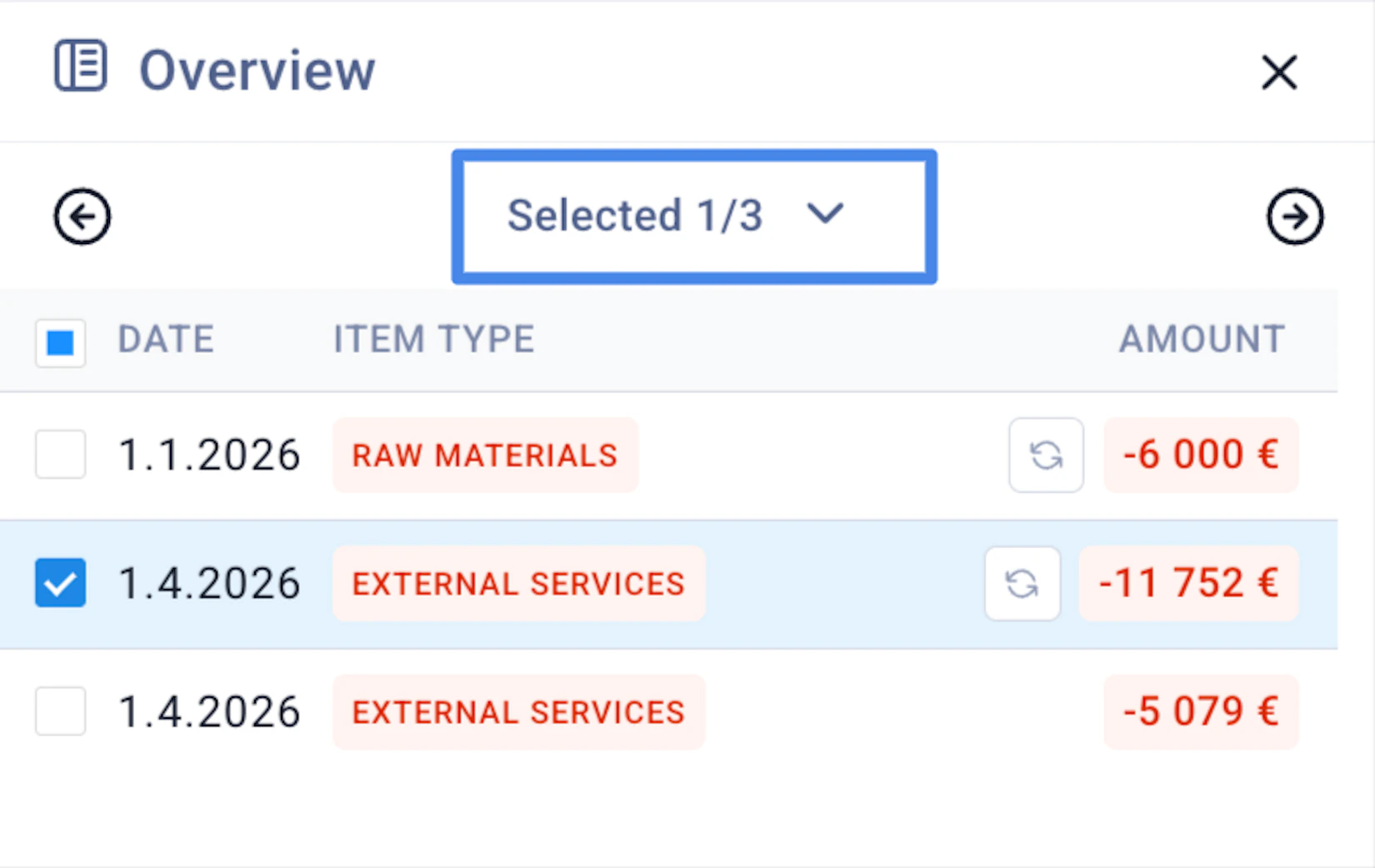
Note: Clicking a budget number selects all underlying items by default. Changes apply to all selected items unless you select an individual budget item from the list.
Bulk editing (important)
- When multiple budget items are selected, any changes made in the lower section:
→ apply to all selected items
This enables efficient mass updates.
3. Lower section: Budget item configuration
The lower section contains all fields that define how a budget item behaves.
It is structured into three parts:
-
General
-
Recurrence
-
Dimensions
4. General section
Defines the core logic and accounting of the budget item.
Item type
-
Determines the nature of the budget item
-
Includes predefined double-entry logic
-
Can be changed via dropdown/search
Counterparty
-
Optional field
-
Used for:
-
Customer-level budgeting
-
Supplier-level budgeting
-
Memo / description
- Free text field for additional context
Amount (with formula support)
-
Defines the value of the budget item
-
Costs must be entered as negative values
Supports formulas and operators:
-
=1000 * 1.1 -
500 * 12
Formula mode activates automatically when using operators or =
Account
-
Primary account: default based on item type
-
Counter account: editable (if applicable)
This ensures full control over:
-
P&L
-
Balance sheet
-
Cash flow impact
VAT %
-
Defaults from organization settings
-
Can be overridden
Input format:
-
Enter as a number (e.g.
14for 14%) -
Do not include
%
5. Recurrence section
Defines timing and repetition of the budget item.
Frequency
-
Default: One-time
-
Options include:
-
Weekly
-
Monthly
-
Every 2–12 months
-
Custom frequency
-
If recurring:
- Caleido automatically generates entries based on the selected frequency
Start date
- Defines when the budget item begins
End date
-
Optional
-
If not set → continues until end of the budget model
Period adjustments
-
Presets available to:
- Shift start period (e.g. +1 month, +1 quarter)
Invoice day
-
Defines the exact day entries are generated
-
Defaults from organization settings
-
Can be overridden
Payment term
-
Defaults from organization settings
-
Can be overridden per item
6. Dimensions section
Used to allocate budget items across business structures such as:
-
Department
-
Location
-
Business unit
Adding dimensions
-
Click Actions → Add field
-
Select from available dimensions
-
Assign value
Managing dimensions
-
Edit directly in the panel
-
Remove using the “X”
7. Actions menu
The Actions menu provides key operations for managing budget items and extending the Overview Panel.
Add field
Use Add field to extend the panel with additional drivers or dimensions.
When selected:
-
A dialog opens with three tabs
-
Each tab lists fields that can be added to the budget item
Key capabilities:
-
Add new drivers available for budgeting
-
Add dimensions from your organization (e.g. department, location)
-
Newly added fields appear in the Overview Panel and can be used immediately
Reset to defaults
-
Resets all fields of the selected budget item(s)
-
Applies the default configuration of the item type
Use this when:
-
You want to revert changes
-
You need to restore original logic and settings
Create new
-
Creates a new budget item row
-
The new row is added to the current context
After creation:
-
Configure the fields in the panel
-
Click Save to generate the budget item
Delete
- Deletes the selected budget item(s)
Behavior:
-
One selected → deletes that item
-
Multiple selected → deletes all selected items
Confirmation required:
-
A confirmation dialog is always shown
-
Deletion is applied only after confirmation
8. Saving changes
- Click Save
This will:
-
Apply changes
-
Trigger generation of entries (especially for recurring items)
Summary
The Overview Panel is the core tool for:
-
Drill-down analysis of budget numbers
-
Managing driver-based budgeting
-
Controlling timing, recurrence, and accounting structure
Use it whenever you need to understand or modify what drives your budget figures.
Last updated 1 day ago
Built with Documentation.AI